
Quick guide
Can macCurrent update global npm packages on a Mac?
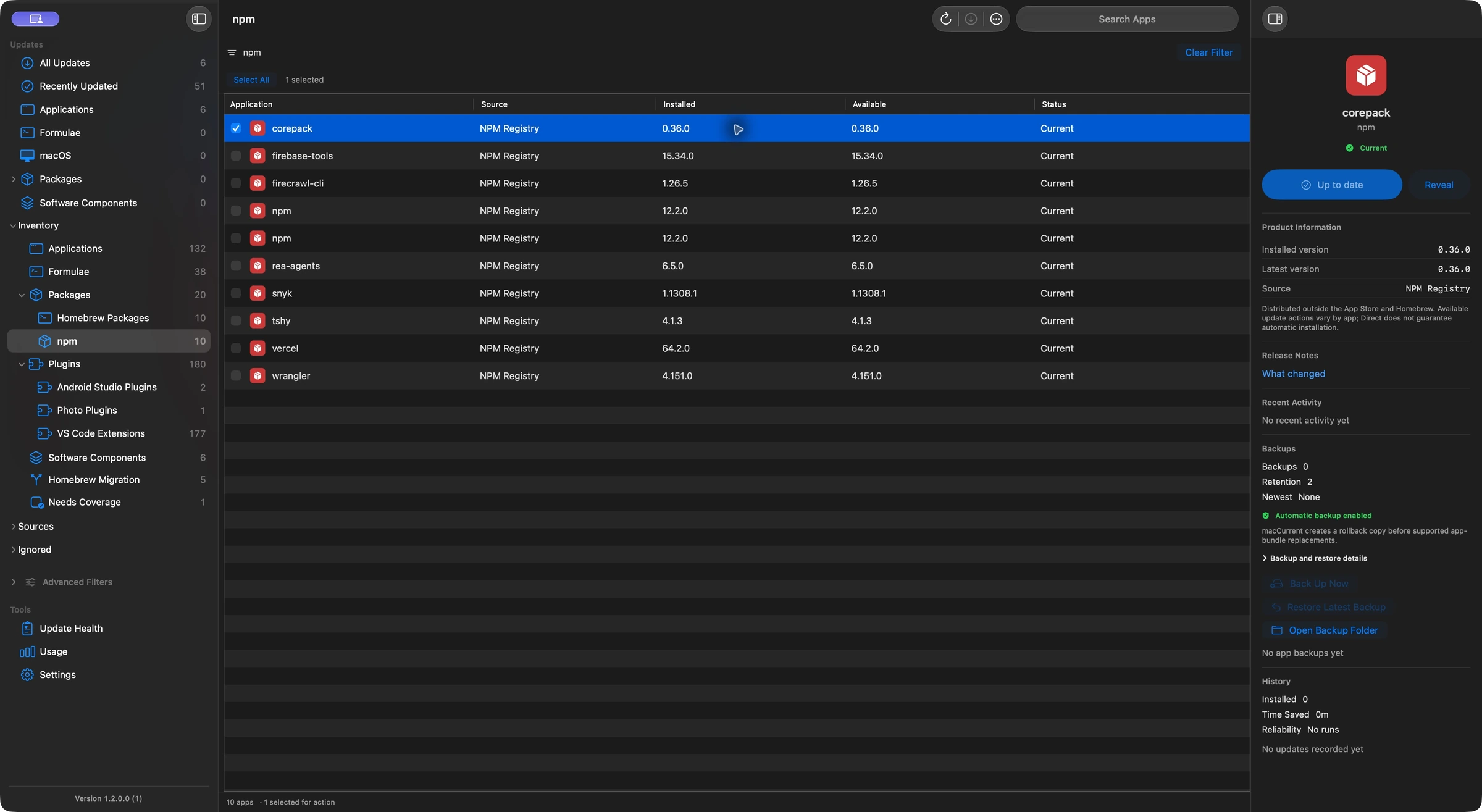
macCurrent finds and updates eligible global npm packages across supported Node installations. It checks public npm releases, helps you choose an installed Node/npm pair that passes the package and dependency requirements, and verifies the installed version. The package keeps its original global location. Project dependencies and private registries stay with their existing tools.
How to update a global npm package
For the coverage described here, use macCurrent 1.2.0.65 or later. A global package is installed for a Node installation rather than inside one project. The examples below describe developer workflows; availability depends on the actual installed copy and offered release.
- Run Scan and open Inventory > Packages > npm. Available updates also appear in the matching Updates category.
- Select the package copy you use. Review its installation path, installed version and offered version.
- Choose Update Package. Review the Node/npm compatibility dialog and select an installed pair whose checks pass.
- Check Update Preview for the package version, selected tools and destination, then choose Update.
- Review the verified installed result. Run the tool with a compatible Node runtime afterward.
macCurrent checks requirements again before installation. Remembering a runtime choice applies to that package installation and still requires a fresh check. The choice leaves your terminal’s default Node/npm and PATH unchanged.
Use case: refresh a global TypeScript compiler
You installed the public TypeScript package globally for a small command-line workflow and use its tsc command. macCurrent discovers that global copy and finds an eligible newer release.
- Find typescript in Packages > npm and confirm which Node installation owns it.
- Review the offered package version and choose a Node/npm pair that passes compatibility checks.
- Update the selected global copy, then check the version with the same Node installation you will use to run it.
The selected global TypeScript installation is updated and its installed version is checked. Other global installations remain separate entries.
This does not change TypeScript installed as a development dependency in a project. Your package.json, project node_modules and lockfile stay with the project’s npm workflow. The TypeScript installation guide explains global and project installations.
Use case: manage the same tool under two Node versions
You keep one Node installation for an older application and another for current work. A global tool such as npm-check-updates is installed in both locations.
- Compare the two package entries and choose the installation you actually want to change.
- Inspect the package and dependency requirements in the compatibility dialog.
- If an offered release needs another installed runtime, choose a passing pair and review the destination before installing.
macCurrent updates the selected package in its original global location. A remembered choice can be reused only after passing a fresh check.
Choosing a newer Node runtime for installation does not switch your shell to that runtime. Use a compatible runtime when running the updated tool. If no installed choice passes, install or repair Node with its owning manager first.
Use case: update a project-maintenance CLI without changing a project
You use a globally installed public npm-check-updates command to inspect dependency changes across repositories. You want to refresh that CLI before deciding what to change in each project.
- Select its eligible global installation in macCurrent.
- Review the exact offered release and runtime compatibility, then install the tool update.
- Open the project later and decide which dependency changes to make with your usual workflow.
The maintenance tool itself is updated. You remain in control of whether and when to use it against a project.
macCurrent does not run npm-check-updates against your repositories or approve dependency upgrades on your behalf. See the npm-check-updates project for its dependency-review workflow.
What stays with npm or your project tools
- Packages installed inside individual projects, including node_modules, package.json and lockfiles.
- Packages configured for private or custom registries; their names are not sent to the public npm registry for checks.
- Repairing a missing Node/npm installation, permissions problems or a runtime that cannot satisfy the selected release.
Updating npm itself uses the verified tools belonging to that npm installation. It does not borrow another installation’s npm. For terminal workflows, see the npm update documentation.
For editor add-ons, read the VS Code and JetBrains extension guide. For standalone Go executables, see the Go tool guide.
Frequently asked questions
Can macCurrent update global npm packages on a Mac?
Yes. macCurrent updates eligible public global npm packages in supported installations. It checks package and dependency requirements with a compatible installed Node/npm pair and verifies the installed result.
Does this update npm dependencies inside my projects?
No. This route covers global installations. Project node_modules, package.json and lockfiles remain with your project tools.
Can I choose a different installed Node.js version for an update?
Yes, when the selected package update supports that choice and its checks pass. The package stays in its original global location. Your default Node/npm and terminal PATH stay unchanged; run the updated tool with a compatible runtime too.
What if a new package release needs a Node version I do not have?
If no installed runtime passes, installation stays blocked. Install or repair a compatible Node version through its owning manager, then check the available installations again.
Does macCurrent check private npm packages on the public registry?
Packages configured for private or custom registries stay with their owning package manager. Their names are not sent to the public npm registry for these update checks.